




Gain Meaningful Insights into TLS 1.3 Data Using Precryption
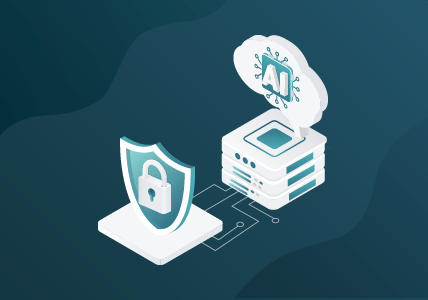
See how you can use Gigamon Precryption® to read TLS 1.3 data and detect malware over encrypted ports in your network.
0:00
Welcome to the Gigamon Tech Hub video series.
0:04
Hi, I’m Yazhini Rajesh, and in this video, we’re going to see how you can look at TLS 1.3 data passing in your network using Gigamon Precryption.
0:13
For this demo, I have a malware server containing unencrypted traffic passing over an encrypted port.
0:19
Normally, you would not be able to monitor this information until the network has been compromised. Now, let’s see how this works with Precryption.
0:27
On my Fabric Manager, I’m going to go and head over into my monitoring session. I’ve already created this session, but let me go ahead and edit it.
0:39
What I have here is all IPv4 traffic passing through my tools through the AMI.
0:47
The AMI fields basically tell you what fields you want to send to your tools.
0:53
Now, I have my destination address here. This is an Ubuntu server with Wireshark running.
0:59
So, I’m going to go ahead and turn on Precryption, sending traffic over the secure tunnel. Selective Precryption is something that is supported only in version 6.8 and above, so I’m just going to make sure all my V Series nodes and the UCT controller are 6.8 and above.
1:18
I’m going to go into my fabric, and I can see that both of them are version 6.8. Now, what I’m going to do is head over to my malware server. I’ll just click on that, and now I’m going to head over to my Wireshark.
1:33
What this is getting sent to is an Ubuntu server with Wireshark installed on it. If I go into my Wireshark tool, I can actually see that it identifies each HTTP traffic that is getting sent through my network. I can see all this data that I wasn’t able to see before.
1:56
Now, if I follow this HTTP stream, I can see exactly what this website shows. It shows “Compromised Web Server” text. Not only that, but I can also go and see the various images that are being passed over my server.
2:13
I can see the file information, what method was requested, and all the information associated with that image.
2:23
Not only that, but I can also see all TLS versions, so I can identify exactly what version is running in my network.
2:31
If I want to identify more about the HTTP traffic, it identifies all the requests and responses from my server as well. I can actually see the line text that’s associated with each website.
2:45
This is the code of a specific website that returned a 200-response code.
2:52
For specific images that are being passed in the network, it also shows where the image was generated from, gives us the full URL, and the time it took to get this response.
3:06
To watch the full Tech Hub Series, check out gigamon.com/techhub.
You Might Also Like
Threats lurking in encrypted traffic? Uncover hidden threats without decryption.
Need to restrict access to sensitive information? Use Selective Precryption®.

Worried about detecting port spoofing? Get alerted to hidden SSH application traffic.